Export
Render your edited project as MP4, GIF, or Final Cut Pro XML. All editor state — trims, speeds, zooms, annotations, audio mix, background — is baked into the export.
Formats
| Format | What it’s for |
|---|---|
| MP4 (H.264) | Standard video for sharing, embedding, uploading. Configurable resolution, frame rate, and bitrate. |
| GIF | Animated GIF for documentation, README files, chat. Configurable resolution and frame rate. |
| FCPXML | Final Cut Pro project file with separate media references. For finishing in FCP with your own color/audio pipeline. |
MP4 settings
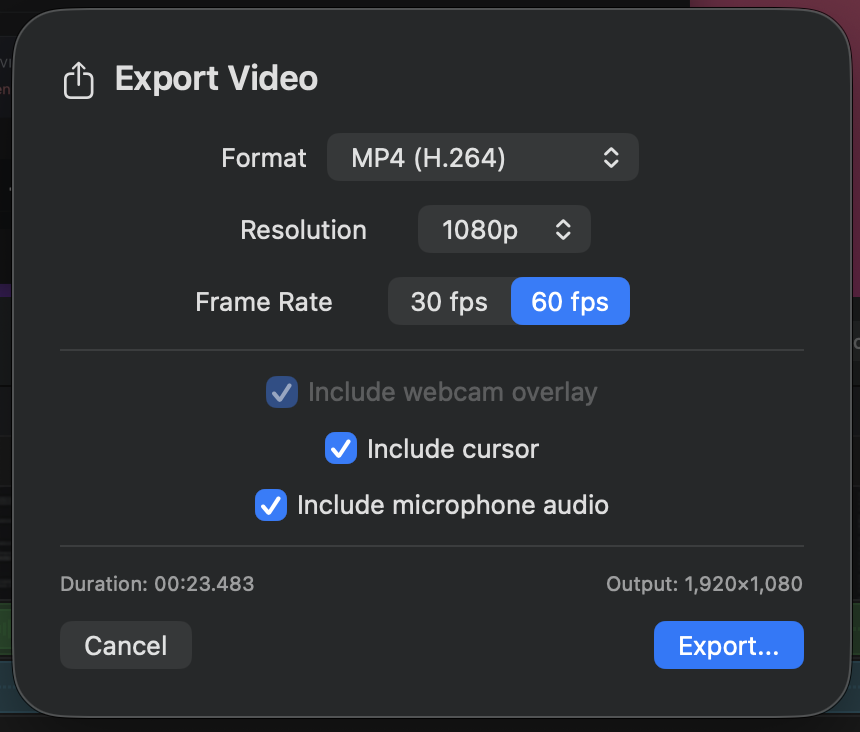
- Resolution — presets for 720p (1280×720), 1080p (1920×1080), 1440p (2560×1440), and 4K (3840×2160), or a custom size.
- Frame rate — up to 60 fps. Use 60 for high-motion content, 30 for slide-style demos.
- Bitrate — auto-tuned to the resolution; override if you have a target file size.
GIF settings
GIFs use Lempel–Ziv compression which favors flat colors and simple motion. To keep file size manageable:
- Drop resolution to 720p or smaller.
- Lower the frame rate to 15 or 24 for typical UI demos.
- Trim to under 30 seconds when possible.
FCPXML
Exporting as FCPXML produces a Final Cut Pro project file alongside the raw media. Open it in Final Cut Pro to inherit Screen Cut Pro’s edits as a starting point and continue refining there.
Inclusion toggles
The export dialog offers per-track toggles:
- Webcam — include or exclude the camera overlay.
- Cursor — include or exclude the cursor and click effects.
- Microphone audio — useful for exporting a narration-free version.
Performance
Export uses VideoToolbox hardware encoding on Apple Silicon. Expect roughly real-time on M1, faster than real-time on M2/M3 Pro/Max. The progress sheet shows ETA. Closing the editor while exporting cancels the job.