Look & feel
Background, padding, window styling, cursor effects — the aesthetic layer on top of your recording. Configure once per project; render time at export.
Background
The space around your recording can be:
- Solid color — pick any color from the swatch.
- Gradient — two-color, with adjustable angle.
- Wallpaper preset — 12 built-in options: Sequoia Light, Sequoia Dark, Ocean, Sunset, Aurora, Lavender, Midnight, Rose Gold, Forest, Neon, Arctic, Ember.
- Custom image — upload any PNG or JPEG.
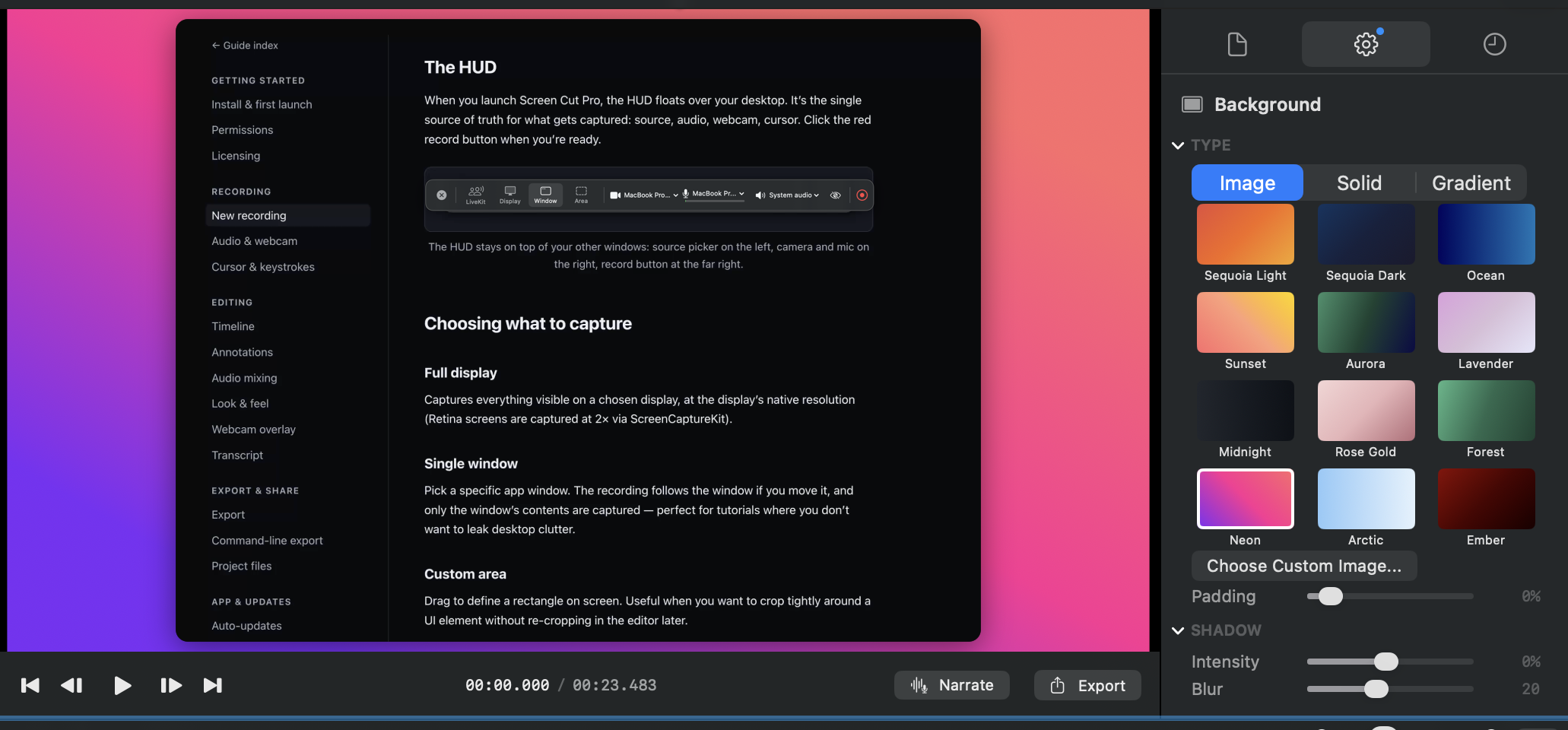
Padding, corners & shadow
- Padding — the breathing room between the recording and the edge of the canvas. Higher values shrink the recording inside its frame.
- Window corner radius — round the recording’s corners. Pairs nicely with a wallpaper background for a "hero shot" look.
- Shadow intensity — how dark the drop shadow is.
- Shadow blur — how soft the shadow falls off.
Cursor styling
The cursor is captured as data, not pixels (see Cursor & keystrokes), so styling happens in the editor:
- Size — 0–3× multiplier on the natural cursor size.
- Smooth movement — eases out hand jitter so the cursor glides.
- Click effect — none, highlight (a colored disk that fades), or ripple (an expanding ring). Both have configurable color and size.
- Hide cursor — in specific time ranges if you don’t want it visible.
Keystroke overlays
Toggle Show keystrokes in the inspector to render the keys you pressed during recording as floating captions at the bottom of the frame. Adjust display duration for how long each press stays visible.
Aspect ratios
The output aspect ratio is independent of the source recording. Available presets:
- Auto — matches the source recording.
- 16:9, 9:16, 9:15, 4:3, 3:4, 1:1, 4:5, 21:9.
Switching aspect ratios re-letterboxes your recording inside the new canvas. Use the recording-position sliders to nudge the recording within the canvas.