Audio mixing
Mic, system audio, and background music live on independent tracks. Each has its own volume, mute, and waveform.
Volume & mute
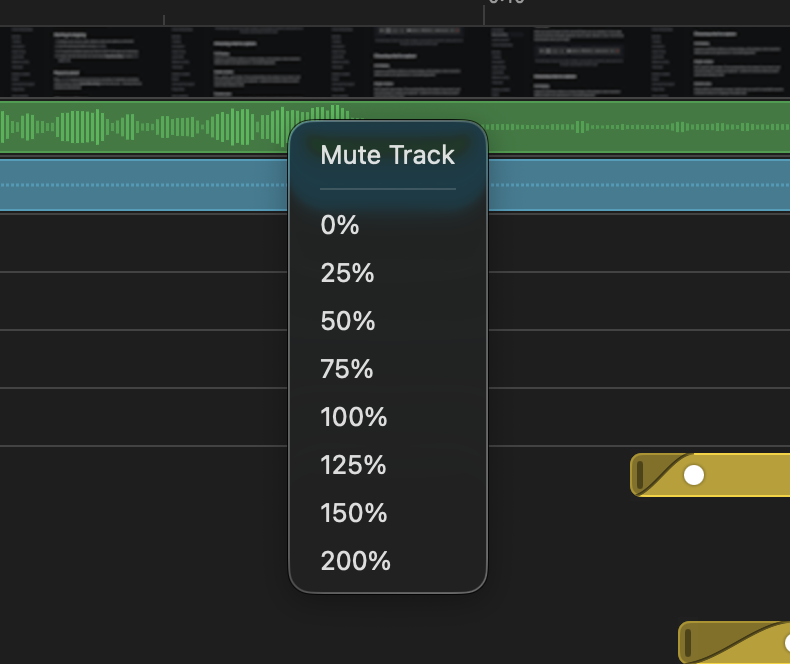
Each track has a master volume slider (0–200%) and a mute button. Find them in the inspector when an audio track is selected, or in the audio panel of the editor.
Gain regions
Sometimes you need a section to be louder or quieter than the rest — e.g., duck the music while you talk, or boost a quiet sentence. Drag a region onto the track and set its gain (0–3×). Multiple regions can overlap; the latest one wins.
Background music
Drop one or more audio files onto the music lane. Each clip has:
- Start time — where on the timeline it begins.
- Volume — per-clip 0–200%.
- Fade in / fade out — smooth entry/exit, defaults to 1 second each.
Common pattern: a soft piano clip across the whole video, ducked under voiceover sections via a 0.3× gain region.
Auto-Duck
Each audio track has an Auto-Duck control in the inspector that automatically lowers this track’s volume whenever a designated parent track is producing sound. It’s the same effect podcast and radio producers call “sidechain compression” — voiceover triggers the music to duck.
Pick a parent in the “Duck under” dropdown, then tune four knobs:
- Threshold — how loud the parent has to be to count as “playing” (defaults to 5%; lower it if quiet speech isn’t triggering the duck, raise it to ignore room noise).
- Reduce to — how much the child track drops while ducked (defaults to 20%; 0% mutes entirely, 100% disables the duck).
- Attack — how fast the duck ramps in when the parent starts (default 50 ms). Too short produces “pumping” artifacts; too long lets the first words drown.
- Release — how fast the duck ramps out when the parent goes quiet (default 300 ms). Longer feels more natural and less choppy.
Two common uses
- Music under narration. Set music to duck under the mic. The music politely steps aside while you talk and rises back up between sentences.
- Speaker bleed in the mic. When you record both the mic and system audio, the mic often picks up a delayed copy of the speaker. Set the mic to duck under the system audio — the bleed gets attenuated whenever the system track plays. (Caveat: if you talk simultaneously with system audio, both tracks are loud at once and the duck will quiet your voice too. True echo cancellation is a separate problem.)
Waveforms
All audio tracks render their waveform on the timeline so you can see where speech happens, identify clipping, and align cuts to phrases. Generated once per track and cached — no waiting on subsequent loads.