Permissions
Screen Cut Pro needs access to a few macOS subsystems to record and style your screen. Here’s what each permission does and how to grant or revoke it.
What each permission unlocks
| Permission | Used for |
|---|---|
| Screen Recording | Capturing the contents of your display, a window, or a custom area. |
| Microphone | Recording voiceover narration alongside the screen capture. |
| Camera | Recording the webcam overlay shown in the corner of your video. |
| Speech recognition | Generating the automatic transcript and the teleprompter’s smart-scroll feature. |
| Accessibility | Tracking cursor position, mouse clicks, and keystrokes so you can style them in the editor. |
None of these are required up front — if you only ever record screen video, you can skip Microphone and Camera. The onboarding flow will let you grant only what you need.
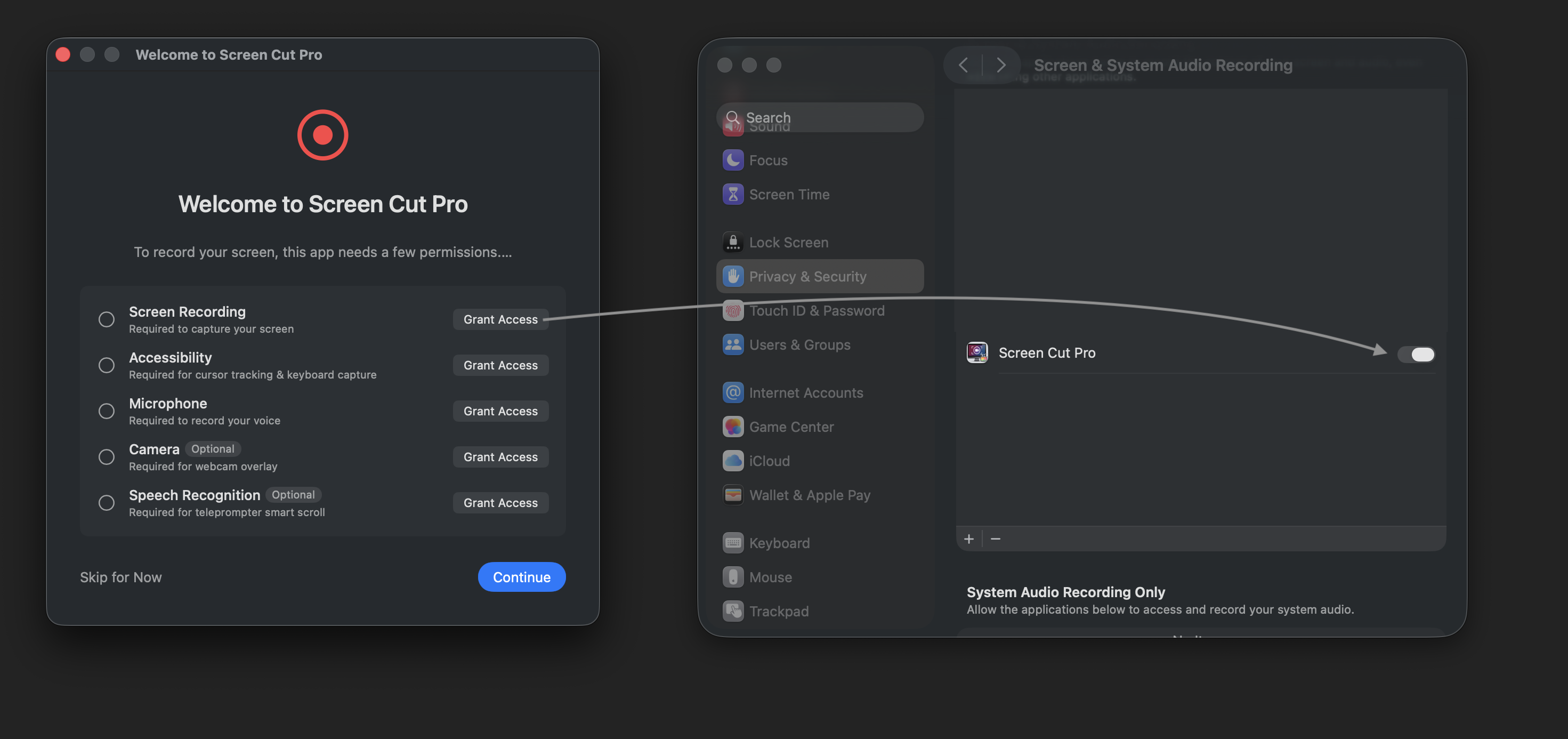
Granting permissions later
If you skipped a permission during onboarding, or revoked one later, you can re-grant it from System Settings → Privacy & Security:
- Screen & System Audio Recording → toggle on the switch next to Screen Cut Pro.
- Microphone → toggle on Screen Cut Pro.
- Camera → toggle on Screen Cut Pro.
- Speech Recognition → toggle on Screen Cut Pro.
- Accessibility → toggle on Screen Cut Pro.
macOS will ask you to quit and relaunch the app after toggling Screen Recording or Accessibility. Quit Screen Cut Pro, then reopen it.
Revoking permissions
Use the same Privacy & Security panes — toggle the switch off. Screen Cut Pro will gracefully degrade (e.g., disable webcam overlay if Camera access is gone) rather than crash.
Troubleshooting
The permission switch is greyed out
Quit Screen Cut Pro completely (Cmd‑Q), then toggle the switch in System Settings. macOS only allows changes when the app isn’t running.
I granted Screen Recording but the recording is black
macOS caches the permission state across the running app session. Quit Screen Cut Pro, confirm the switch is on in System Settings, and relaunch.
Cursor effects don’t appear
Cursor highlighting, click ripples, and keystroke overlays all rely on Accessibility. Make sure that switch is on, and quit/relaunch the app after granting it.