Project files
A .screencut file is a self-contained package that holds your
raw recording and all your edits. Move it between Macs, back it up, or
archive it — everything you need to keep editing comes along.
Inside a .screencut bundle
.screencut is a macOS file package — visually a single file in
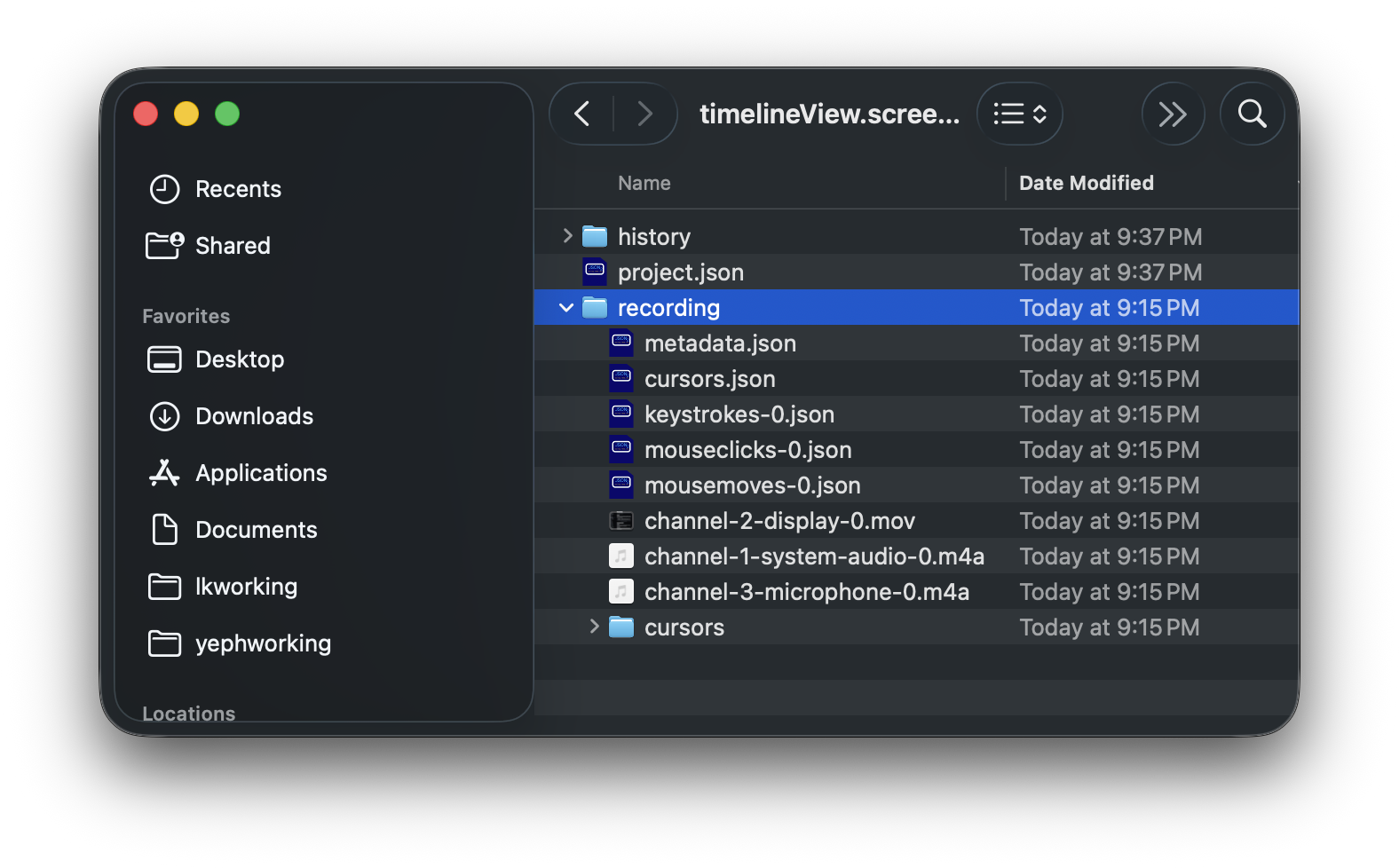
Finder, but a folder underneath. Right-click → Show Package
Contents to peek inside:
project.json— all editor state: trims, speeds, zooms, annotations, audio mix, background.recording/— everything captured during the recording session:channel-*-display-*.mov— the screen video.channel-*-system-audio-*.m4a— system audio track.channel-*-microphone-*.m4a— microphone narration.metadata.json— recording-time metadata.cursors.json,mousemoves-*.json,mouseclicks-*.json,keystrokes-*.json— cursor position, mouse, and keyboard event streams.
cursors/— cursor bitmap captures (each unique cursor image observed during the recording).history/— version snapshots from the version-history feature.
Save vs. Save As
A new recording lives in a temporary folder until you save it. The first
save (or File → Save Project As) prompts for a permanent
.screencut location and copies the temp working files there.
Subsequent Save Project commands write directly to that location. The Save As command makes a copy at a new location and rebinds the editor to the new copy.
Version history
Open File → Version History… to see snapshots
of your project. Each snapshot is a self-contained copy of
project.json taken at meaningful save points. Click any
snapshot to revert.
Sharing & backup
- Sharing — right-click in Finder, compress, send the resulting
.zip. The recipient unzips and opens the bundle. - iCloud / Dropbox —
.screencutbundles sync as packages on macOS. Use Optimize Mac Storage caution: the package can be sizeable. - Backup — Time Machine treats the package as a single unit, so partial-state corruption isn’t a concern.
Legacy formats
Older projects with .screenrecorder extension still open. Drop
them on the app or use File → Open Project…. They’re upgraded
to .screencut the next time you save.