Auto-updates
Screen Cut Pro checks for new versions in the background and offers them when they’re available. You stay current without ever leaving the app.
How it works
- On launch (and once a day after), the app fetches an update feed from screencutpro.com.
- If a newer build exists, you get a sheet titled “A new version of Screen Cut Pro is available.” with release notes.
- Click Install Update. Screen Cut Pro downloads, verifies, and installs the new build, then relaunches.
Checking manually
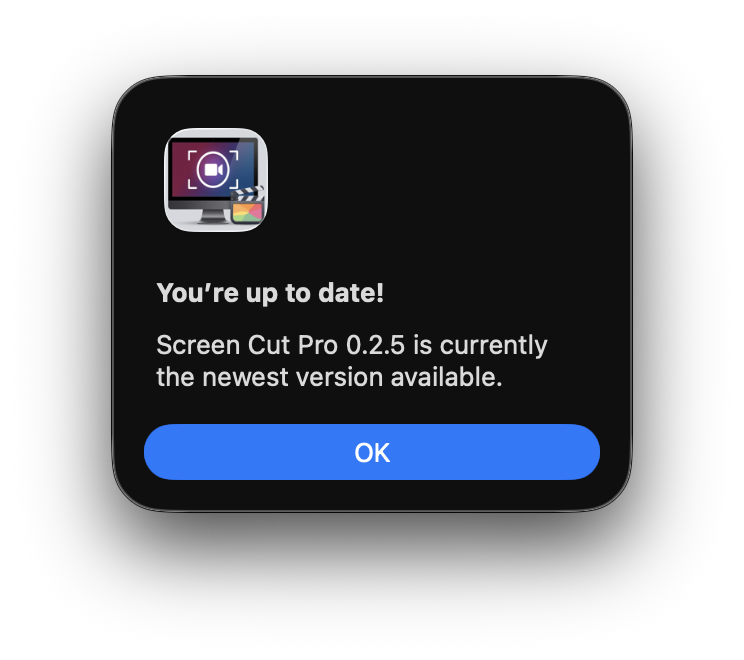
Don’t want to wait? Screen Cut Pro → Check for Updates… runs an immediate check. If a new version is out, the same sheet appears. If not, you get a quick “You’re up to date” confirmation.
How updates are verified
Every update has two independent signatures attached:
- Apple notarization — proves the build came from the registered Developer ID and was scanned by Apple’s notary service.
- EdDSA signature — proves the update wasn’t tampered with between the server and your Mac.
If either check fails, the update is refused. You’ll never end up running a tampered build.
Disabling auto-checks
The update preferences live in Screen Cut Pro → Settings → Updates. Toggle Automatically check for updates off to require manual checks. Updates always require your confirmation before they install — the app never replaces itself silently.
What about updates while the editor is open?
The update sheet won’t hijack you mid-edit. If a project is open, the update offer waits until you close it. You can also opt to install the next time the app starts, deferring the change to a clean state.