Narration & voice cloning
Turn a written script into a clean voiceover without ever picking up a microphone. Type what you want to say, optionally clone your own voice from a short reference clip, and Screen Cut Pro generates audio on-device using Chatterbox TTS.
Open the dialog
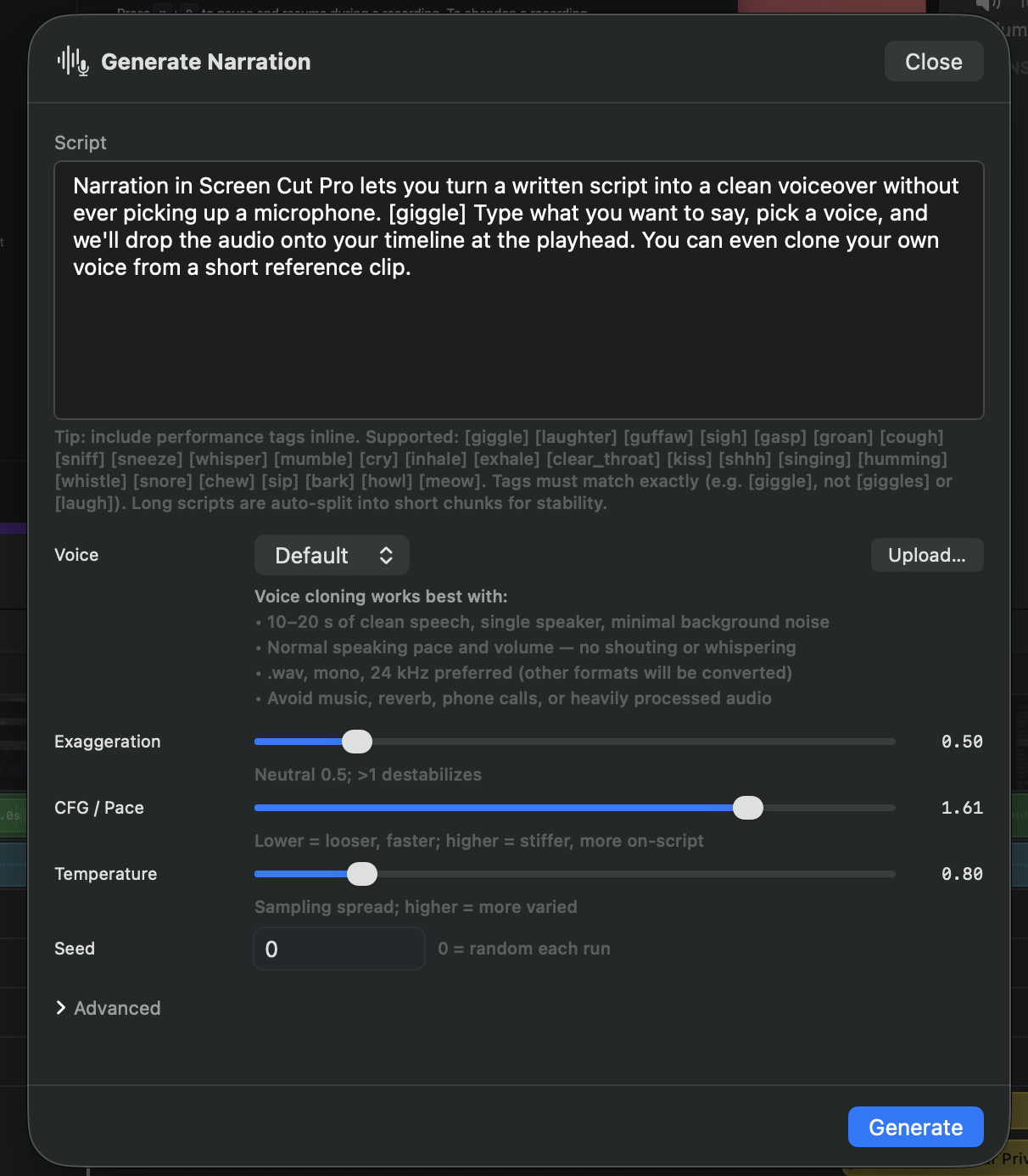
Click Narrate in the playback controls bar above the timeline. The Generate Narration sheet opens.
First-run model download
Chatterbox TTS runs entirely on your Mac, but its Core ML models aren’t
bundled with the app — they’re downloaded on first use from
Hugging Face. Total download is around 1.85 GB, split
across several .mlpackage bundles. A progress screen tracks
bytes received and shows the file currently downloading; Cancel
Download aborts cleanly.

Subsequent uses skip straight to the script editor. The models live in Application Support and survive app updates.
Writing the script
Type or paste prose into the script field. A few extras Chatterbox understands:
- Performance tags — inline tokens render as those sounds in place. The full set:
[giggle][laughter][guffaw][sigh][gasp][groan][cough][sniff][sneeze][whisper][mumble][cry][inhale][exhale][clear_throat][kiss][shhh][singing][humming][whistle][snore][chew][sip][bark][howl][meow]. Tags must match exactly —[giggle], not[giggles];[laughter], not[laugh]. Use them sparingly — one per paragraph at most. - Punctuation matters — commas and periods create real pauses. End paragraphs with a period.
- Numbers and acronyms — spell out anything ambiguous (“A.P.I.” reads as letters; “API” usually does too, but verify on critical content).
- Long scripts auto-split — the chunker breaks long inputs into shorter segments for stability and stitches the results back together at the end.
Choosing a voice
Pick from the voice library:
- Default — the bundled Chatterbox voice. Neutral, broadcast-style. Good starting point.
- Saved voices — any reference clip you’ve uploaded previously, listed by the name you gave it.
- Upload… — pick an audio file to clone. Screen Cut Pro will offer to save it to your library so you can reuse it later.
Voice cloning — what works
The dialog itself spells out the recipe; in summary:
- 10–20 seconds of clean speech — longer doesn’t materially help; shorter starves the model.
- Single speaker, minimal background noise, no music or reverb.
- Normal speaking pace and volume — no shouting or whispering. The clone learns from average behavior; extremes mislead it.
- .wav, mono, 24 kHz preferred. Other formats will be converted, but starting at the target avoids lossy intermediate steps.
- Avoid phone calls or heavily processed audio — codecs and noise reduction strip the spectral cues the encoder relies on.
Click Upload…, pick the file, optionally give it a name. The voice is saved to your local library and can be reused on any project.
Generation knobs
Four sliders control how the voice sounds. The dialog shows a one-line hint under each — here’s the longer story:
| Knob | What it does | Default |
|---|---|---|
| Exaggeration | Emotional intensity. Neutral 0.5; >1 destabilizes. 0 = flat / robotic; 1 = dramatic. Anything above 1.0 starts producing artifacts. | 0.50 |
| CFG / Pace | How closely the model follows the script. Lower = looser, faster; higher = stiffer, more on-script. | 1.61 |
| Temperature | Sampling spread. Higher = more varied delivery; lower = safer, more uniform. | 0.80 |
| Seed | Random seed. 0 = random each run; pin to a specific number to get reproducible takes for the same script and voice. | 0 |
Defaults work well for most narration. Tweak after listening — small moves first.
Advanced sampling
Expand the Advanced disclosure for the four less-common knobs:
- Top P / Top K / Min P — probability cutoffs that constrain the sampler. The defaults match Chatterbox’s reference Python implementation.
- Repetition penalty — discourages the model from looping (e.g. stuttering on a tricky word).
- Normalize loudness — targets a consistent perceived loudness across chunks. Leave on unless you’re post-processing externally.
Generating
- Click Generate. The script is split into chunks (sentence- or paragraph-aware) and each chunk runs sequentially through the TTS engine.
- The list shows per-chunk progress with live status messages (“Synthesizing speech tokens…”) and an overall progress bar.
- If a chunk fails, the others still complete — you’ll see the failure inline and can re-run.
- When all chunks are done, Screen Cut Pro stitches them into a single WAV and drops it onto the timeline as a music region starting at the playhead.
Generation time depends on your Mac and script length. On Apple Silicon expect roughly real-time to 2× faster than playback — a 60-second voiceover takes about 30 seconds to generate.
Cancelling
Hit Cancel mid-generation. Already-rendered chunks are discarded; nothing lands on the timeline. Your script and settings are preserved so you can tweak and re-run.
Editing the result
Once a narration is on the timeline it’s a regular music clip. You can:
- Move it, trim it, or split it like any other clip.
- Apply gain regions to duck other audio under it.
- Layer multiple generated narrations — e.g., one voice for narration and a different cloned voice for a quoted character.
Privacy
The generation pipeline is fully on-device once the models are downloaded. Your script, your reference clips, and the generated audio never leave your Mac. The initial Hugging Face download is the only network activity.