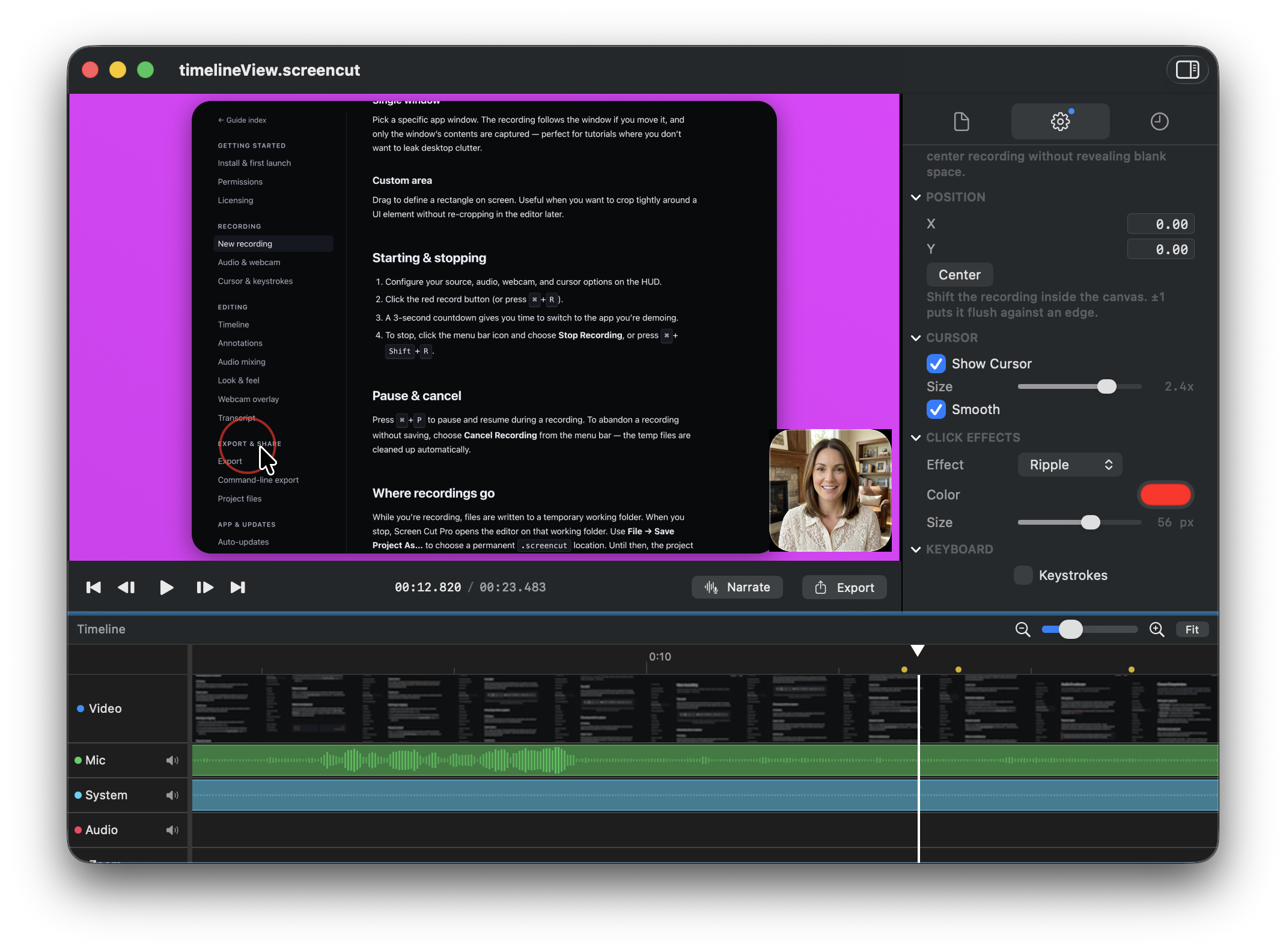
Timeline
The bottom panel of the editor. Trim out sections, add speed regions, add zoom regions, and scrub frame-by-frame.
Trim
Drag the start or end edge of the video to cut off the beginning or end. Or right-click anywhere to Cut at playhead, then drag the new edge inward. Trims don’t modify the underlying recording — the full source is always there if you want to extend back out later.
Speed regions
Select a section and apply one of the preset speeds: 0.25×, 0.5×, 0.75×, 1×, 1.5×, 2×, 3×, 4×. The video and audio retime together with pitch correction.
Useful patterns:
- 3× or 4× for typing-heavy sections you want to compress without cutting.
- 0.5× for the moment something important happens that you want the viewer to notice.
- 1× back to back with a faster region to "snap" out of fast-forward.
Zoom regions
Add a zoom region to focus the viewer on a specific spot. Configure:
- Scale — how far to zoom in.
- Focus point — where on the original frame the zoom centers.
- Easing — smooth in/out so the zoom doesn’t snap.
Zooms render in real-time during preview and are baked into the export.
Scrubber & thumbnails
The video thumbnails on the timeline are sampled from your recording, so you can find the right moment by sight. Drag the playhead, or use ← / → for frame-by-frame stepping (hold Shift for one-second jumps).
Lanes
Each kind of effect lives on its own lane: video, audio, music, camera, speed, zoom, annotation. You can scroll independently and reorder annotations by dragging between lanes.
Adding elements
Every bubble lane — zoom, speed, trim, camera transitions, music, annotations, code — supports two ways to add a new pill:
- Double-click empty space on the lane to add a default item at that point in time. Empty lanes show a “Double-click in track to add items” hint at the leading edge until you add the first one.
- Right-click empty space for a context menu that adds at the exact click time. The annotation track expands the menu so every type (Text, Arrow, Rectangle, Circle, Blur, Spotlight, Highlight, Key Combination, Image) is one click away — no need to add a generic annotation and switch type after. The Speed track exposes 0.5× / 1.5× / 2× / 3× / 4× presets; the Music track opens a file picker positioned at the click.
Zoom out for the big picture
The screen-recording and webcam thumbnail strips render at a constant cell size: zooming the timeline in or out doesn’t resize the thumbnails, it just changes how many seconds each one represents. The strip always ends at the real duration of the clip, even when the project is short enough to fit the whole timeline inside the viewport.
Expand the preview
The expand button in the playback controls bar (just left of the Narrate button) hides the inspector and the timeline so the video preview takes the entire editor window. Useful for spot-checking zooms or annotation alignment in a larger view. Click again to restore the standard FCP-style three-panel layout.